PaySpot Docs
CSV voucher setupBack to PaySpot

Architecture Guide

CSV Import with Omada vouchers

Use CSV import when Omada generates the real voucher codes and PaySpot sells those codes online. The important rule is simple: create vouchers in Omada first, export them, then import the same vouchers into the matching PaySpot plan.

Create vouchers in Omada

Step 1

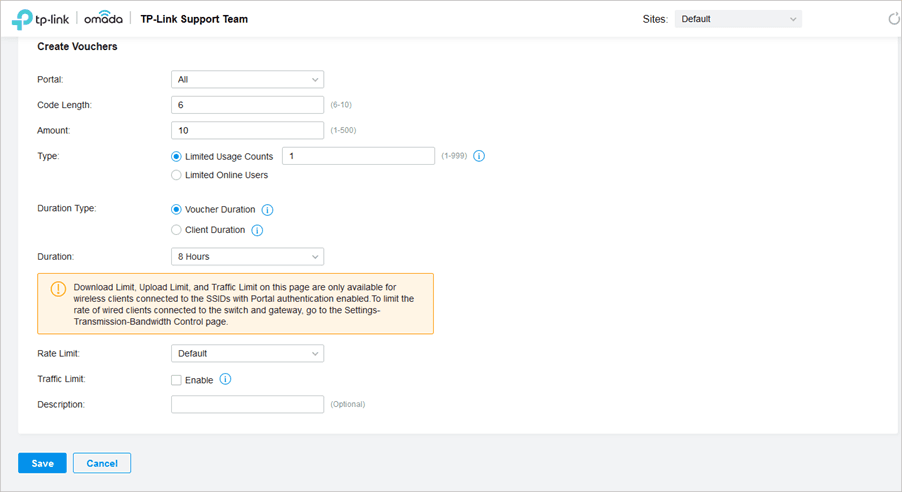
Create vouchers in Omada

Create one voucher batch per plan. If your PaySpot plan is 1 day, the Omada voucher batch should also be 1 day.
Confirm generated codes

Step 2

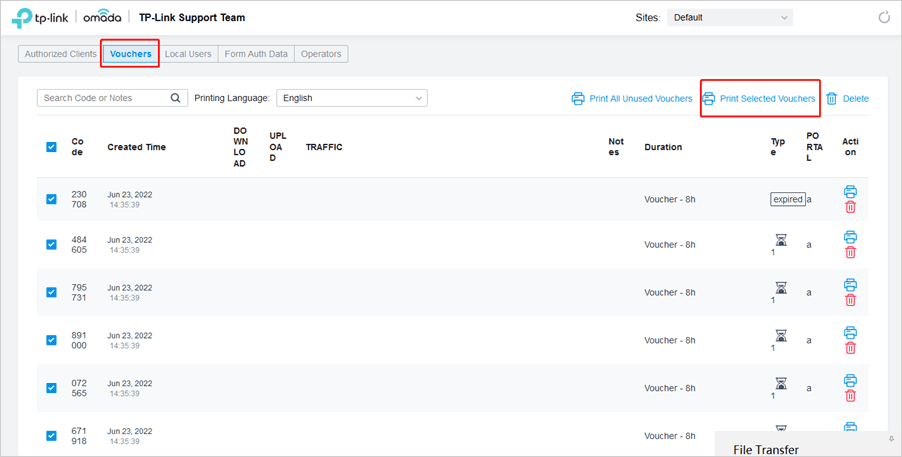
Confirm generated codes

Omada shows the generated vouchers in Voucher Manager. This is where you can review or print selected vouchers.
Export Voucher Codes as CSV

Step 3

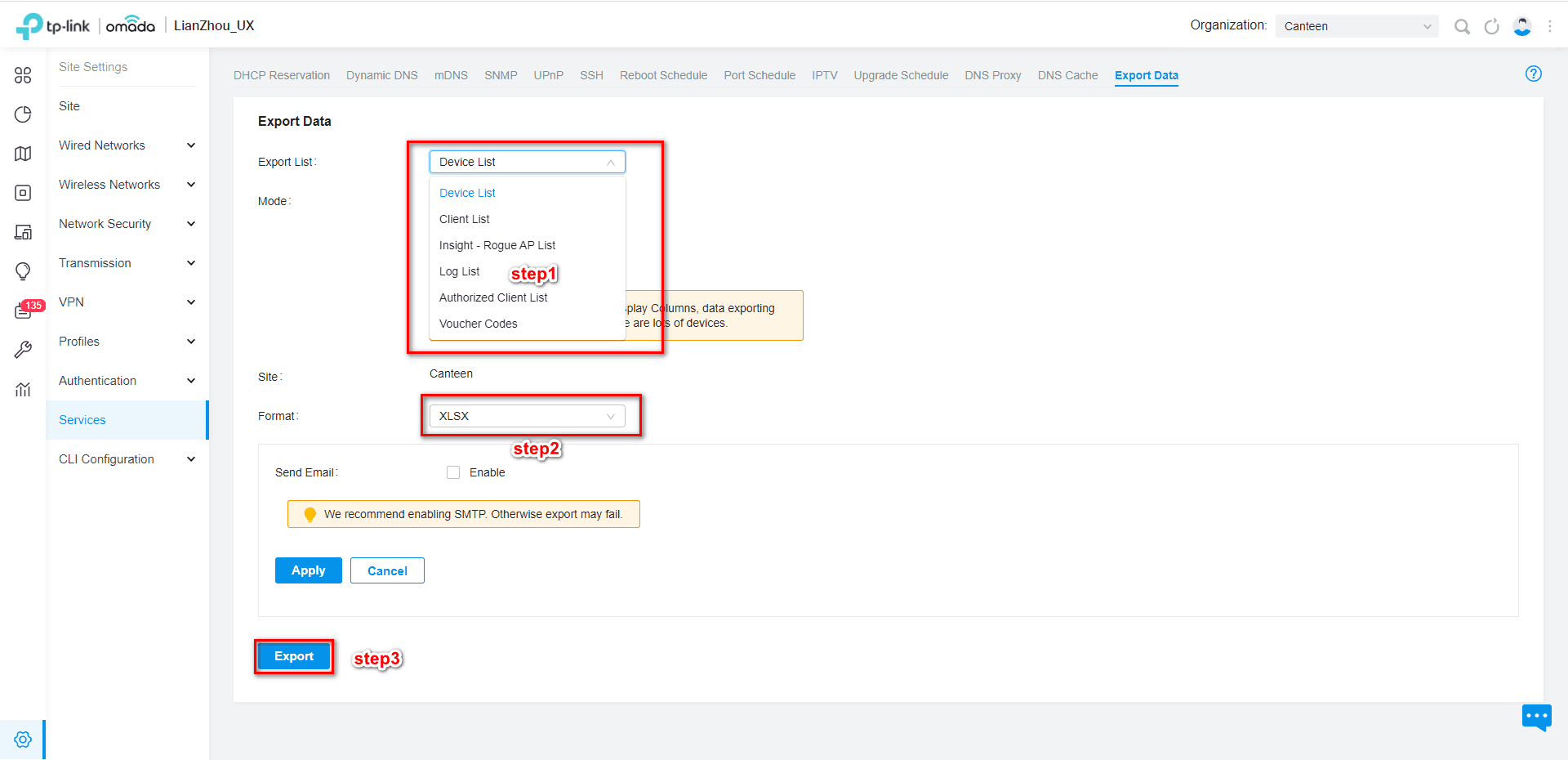
Export Voucher Codes as CSV

On newer Omada Controller versions, use Site Settings > Services > Export Data, select Voucher Codes, choose CSV, and export.

Detailed Omada workflow

  1. 01 Open Omada Controller and select the correct site for the hotspot.
  2. 02 Go to Hotspot Manager or Authentication, open Voucher Manager, and create vouchers for one PaySpot plan.
  3. 03 Match the Omada duration, user limit, rate limit, and traffic limit to the plan you created in PaySpot.
  4. 04 For Omada Controller v5.9 and newer, go to Site Settings > Services > Export Data, choose Voucher Codes, choose CSV, then export.
  5. 05 In PaySpot tenant admin, open Vouchers, choose the matching plan, upload the CSV, and confirm the unused stock count.

CSV requirements

  • The CSV must include a voucher code column. Accepted names include Code, Voucher Code, Voucher, or csvCode.
  • Only unused vouchers should be imported. Do not import already-used Omada vouchers.
  • Create and export a separate CSV for each PaySpot plan when plans have different durations or limits.
  • Import the file into the matching PaySpot plan so customers receive a voucher with the correct Omada duration.

Troubleshooting

  • Imported count is zero: confirm the exported file is CSV, not XLSX, and that the code column is present.
  • Duplicates are skipped: this is safe. PaySpot will not import the same voucher twice.
  • Customers get invalid voucher: confirm the voucher still exists in Omada and was not deleted after export.
  • Wrong duration: export a fresh Omada voucher batch whose duration matches the PaySpot plan.

Official Omada references

The screenshots above are from TP-Link/Omada support material. Use these links when your controller UI labels differ slightly by version.